> ## Documentation Index
> Fetch the complete documentation index at: https://docs.world.org/llms.txt
> Use this file to discover all available pages before exploring further.
# Payment Methods
Integrate Apple Pay and Google Pay into your mini-app
Both Apple Pay and Google Pay run directly in the WebView environment of your
mini-app, using their respective JavaScript APIs.
## Environment Setup
First, ensure your mini-app has a secure HTTPS environment, as both Apple Pay and Google Pay require it.
For Apple Pay, you must: - Register for an Apple Developer account -
Configure your merchant ID - Register your domain with Apple - Set up
merchant validation on your server [Complete setup guide on Apple's
website](https://applepaydemo.apple.com/)
For Google Pay, you must: - Set up a Google Pay merchant account - Configure
your Google Pay API in the Google Pay Business Console - Obtain your
merchant ID [Complete setup guide on Google's
website](https://developers.google.com/pay/api/web/guides/resources/demos)
### Testing
Test your integration thoroughly using test cards and sandbox environments.
**Development Environment:** - Use Apple Pay's sandbox environment - Test
with Apple's test cards **Test Cards:** - You can use any valid card number
in the sandbox - No actual charges will be processed **Testing Checklist:**
* Verify merchant validation works - Test on both iOS devices and Safari on
macOS - Check error handling - Verify payment completion flows
Apple Pay integration demo
**Development Environment:** - Use Google Pay's TEST environment - Test with
Google's test cards **Test Cards:** - Use test PAN: 4111 1111 1111 1111 -
Expiration: Any future date - CVV: Any 3 digits **Testing Checklist:** -
Verify button displays correctly - Test on Android devices - Check error
handling - Verify payment completion flows
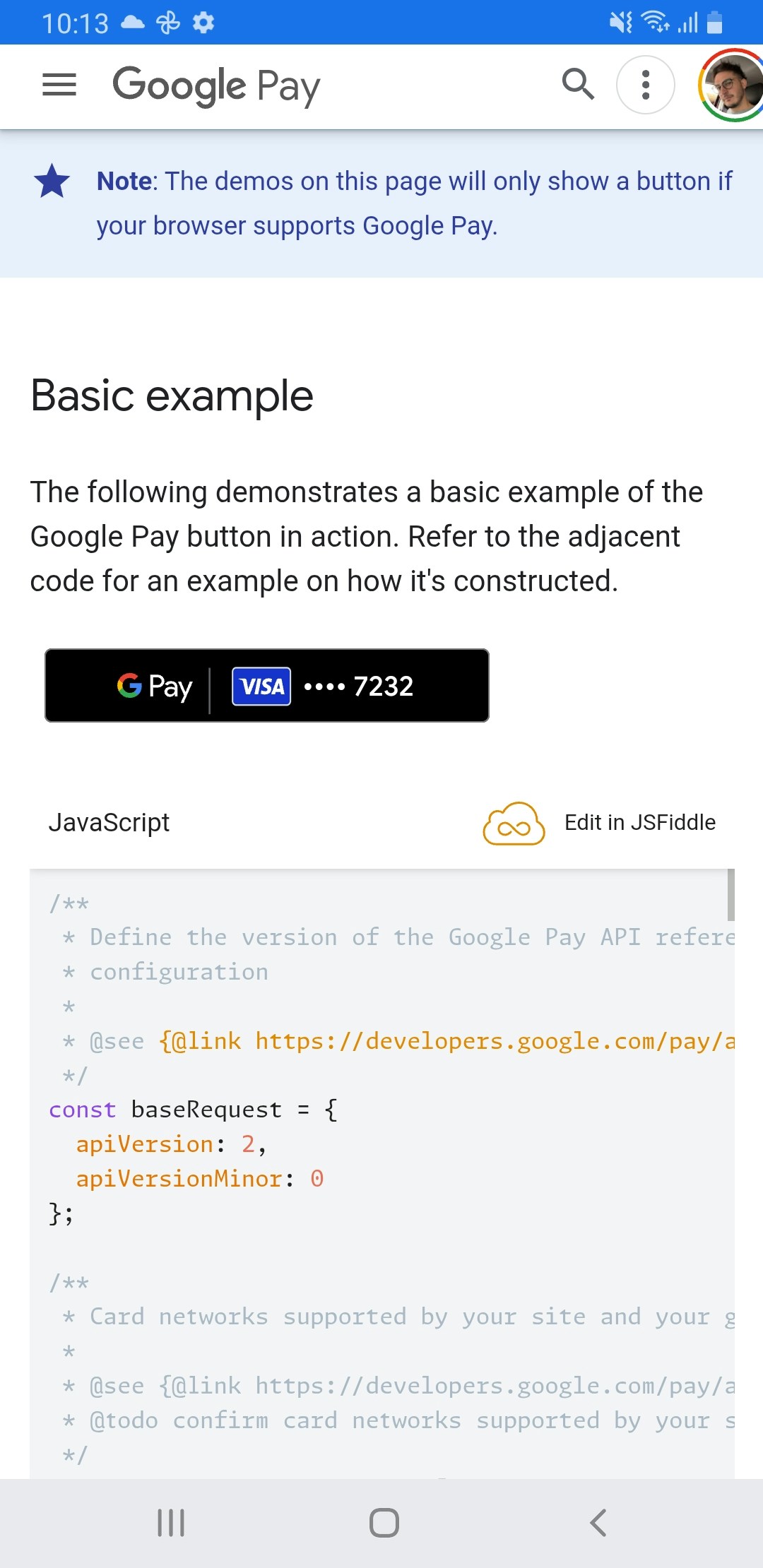
Google Pay integration example
## Limitations and Considerations
* **Platform Restrictions**: Apple Pay only works on iOS/macOS devices with Safari, while Google Pay is primarily for Android
* **Device Support**: Users must have devices that support these payment methods
* **WebView Context**: Some features might behave differently in the mini-app WebView compared to a standard browser
For Apple Pay merchant validation, your server needs to be accessible via
HTTPS and properly configured with Apple's developer portal.
## Additional Resources
* [Apple Pay Demo and Documentation](https://applepaydemo.apple.com/)
* [Google Pay API Documentation](https://developers.google.com/pay/api/web/guides/resources/demos)
* [Apple Pay Human Interface Guidelines](https://developer.apple.com/design/human-interface-guidelines/apple-pay/overview/)
* [Google Pay Web Integration Guide](https://developers.google.com/pay/api/web/guides/tutorial)
 Google Pay integration example